Login / Home
Start here after connecting to the temporary Pebble setup Wi-Fi.
Use this guide after the portal setup has been prepared. It covers field installation, device connection, sensor testing, troubleshooting, and final close-out.
Important: The Monitoring Device is the portal record. The Pebble Unit is the physical hardware. The Link Code connects the physical unit to the portal record.
Do not start the physical setup without the Link Code and tank configuration.
Choose sensor, controller, cable, junction box, antenna, and power locations before drilling final holes.
Connect enough to test Wi-Fi signal and sensor direction before final mounting.
Press and release the menu button, connect to Pebble-xxxxxx, and open 192.168.4.1.
Confirm the planned mounting location has reliable signal before tightening everything down.
Enter the Link Code, choose sensor settings, test readings, and save settings.
Check level value, time, sensor type, and tank relationship before leaving the site.
Close the temporary setup Wi-Fi and return the device to normal runtime mode.
The hardware steps change depending on whether this is eco1, eco2, or Pebble Plus.
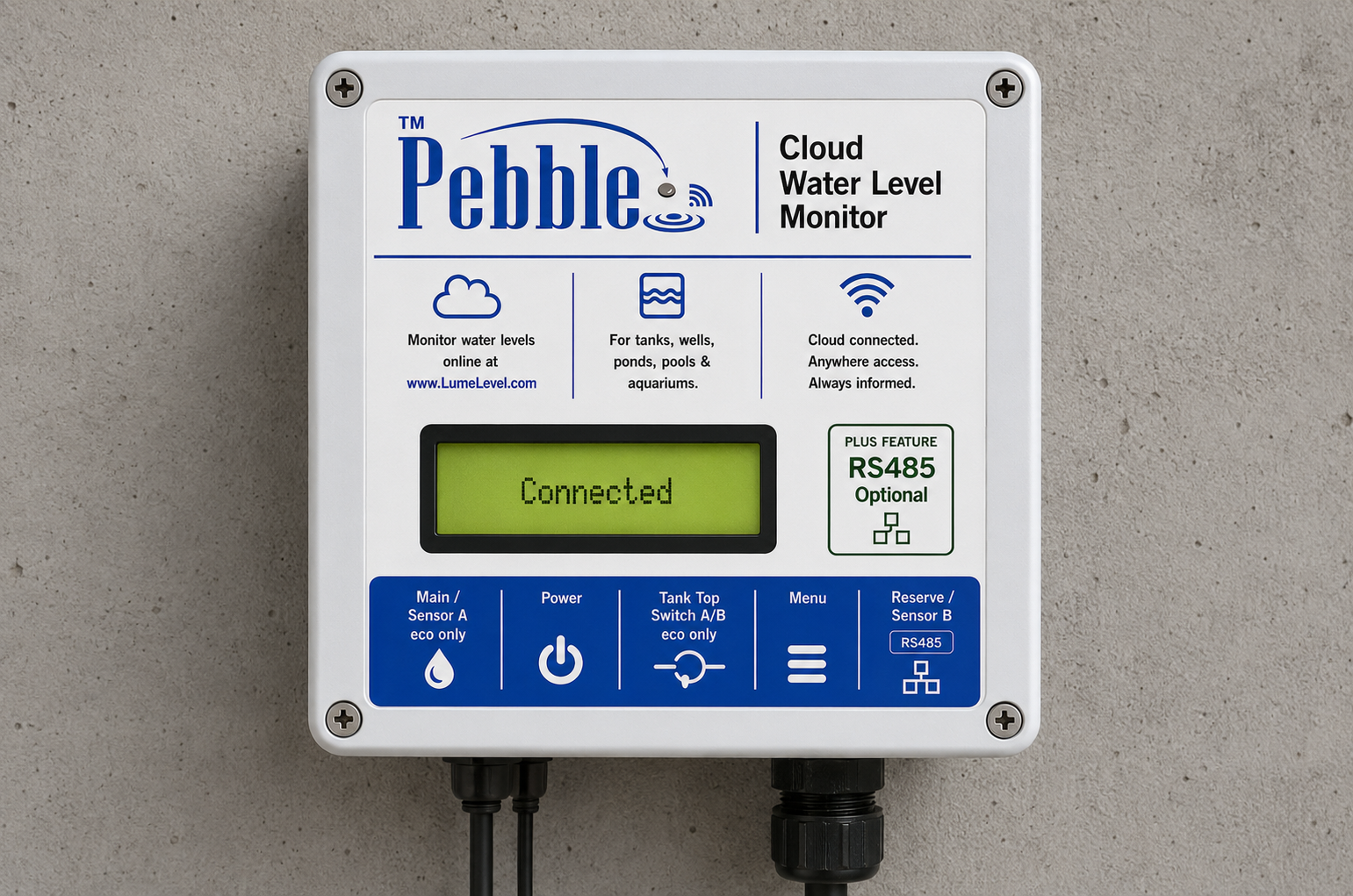
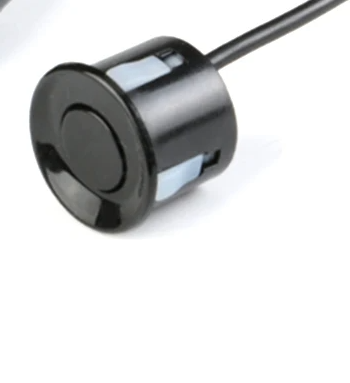
Main Tank should be linked to the Monitoring Device. Sensor Type should be Ultrasonic unless the installation was specially configured otherwise.
Main Tank must be configured as having a reserve. Main Tank is Sensor A / reading 1. Reserve Tank is Sensor B / reading 2.
The portal sensor type and physical sensor type must agree. If a submersible sensor is used, the portal tank must be set as Submersible.
Hardware rule: Plan the cable route, controller location, and Wi-Fi/antenna location before drilling final holes.
Use these accordions as the physical field checklist. Only open the sections that apply to the installation.
Choose a controller location before final mounting. The location should balance sensor cable length, service access, power, and reliable communication.
Use the Wi-Fi Meter before final mounting: Temporarily power the unit, connect to the site Wi-Fi, and check the Wi-Fi Meter. Target -75 dBm or better where possible. Below -80 dBm should be treated as unreliable.
eco2 note: Main sensor connects as Sensor A / reading 1. Reserve sensor connects as Sensor B / reading 2.
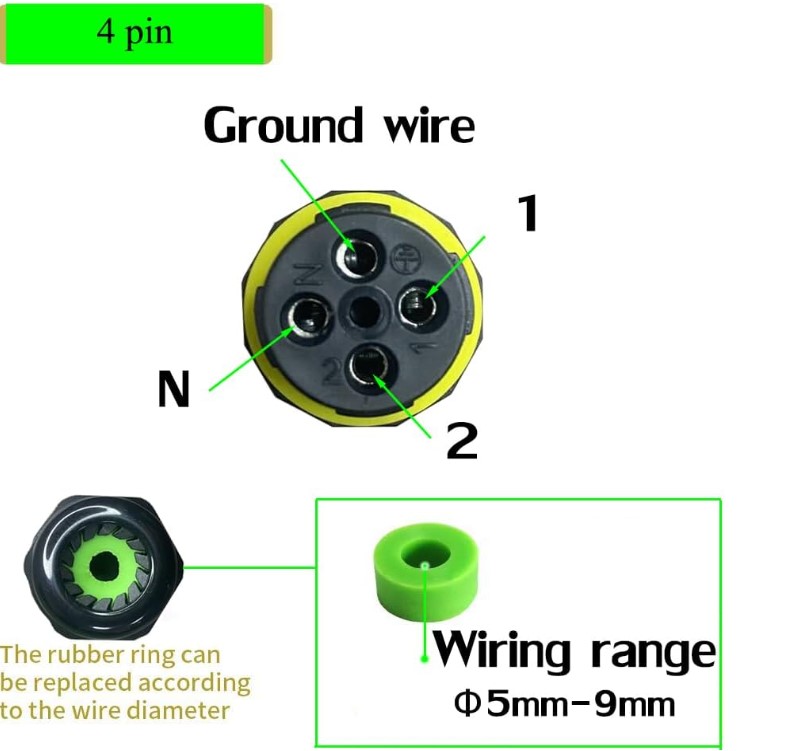
Portal match: When using a submersible sensor, the portal tank Sensor Type should be Submersible. High Water Overflow is treated as the full/usable level and Sensor Height is handled accordingly.
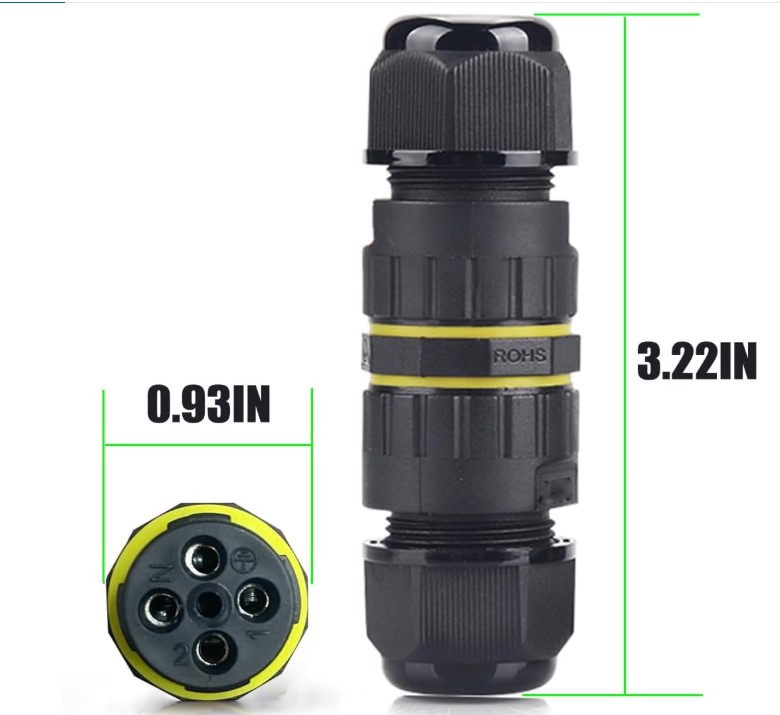
Recommended behavior: Tank top closed = switch circuit closed / continuity present. Tank top open = switch circuit open / no continuity.
Avoid this: Do not intentionally install the tank-closed condition as an open circuit. A broken wire could then look the same as a normal closed tank.
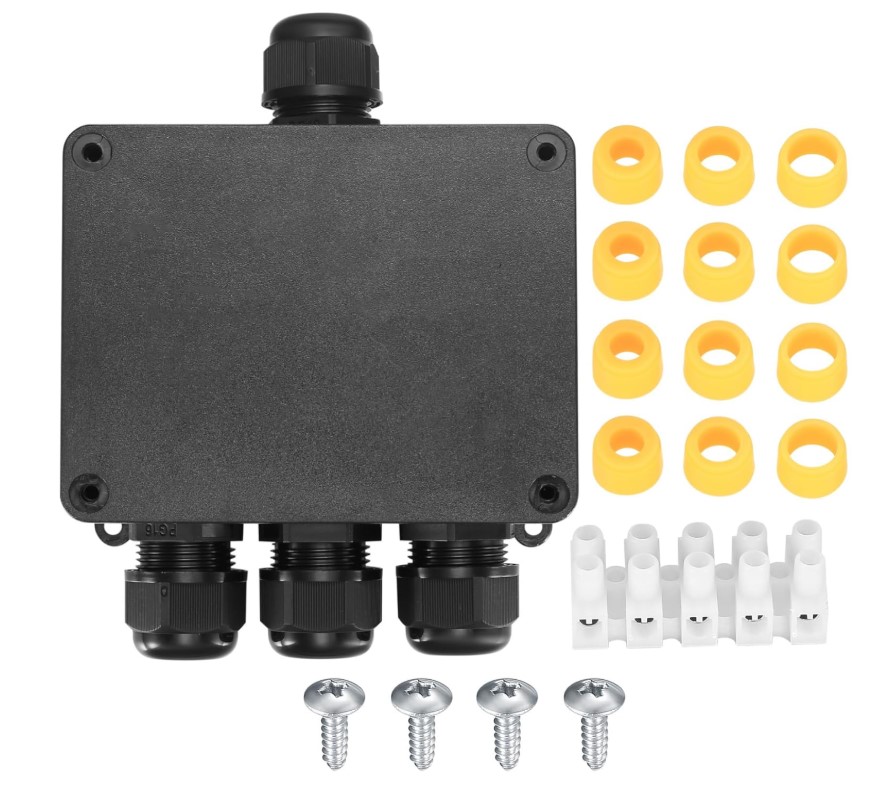
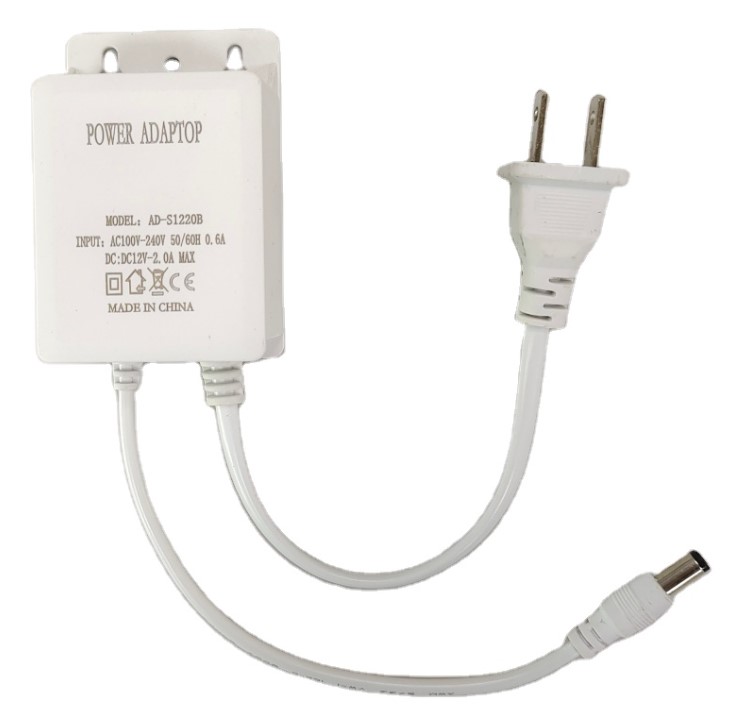
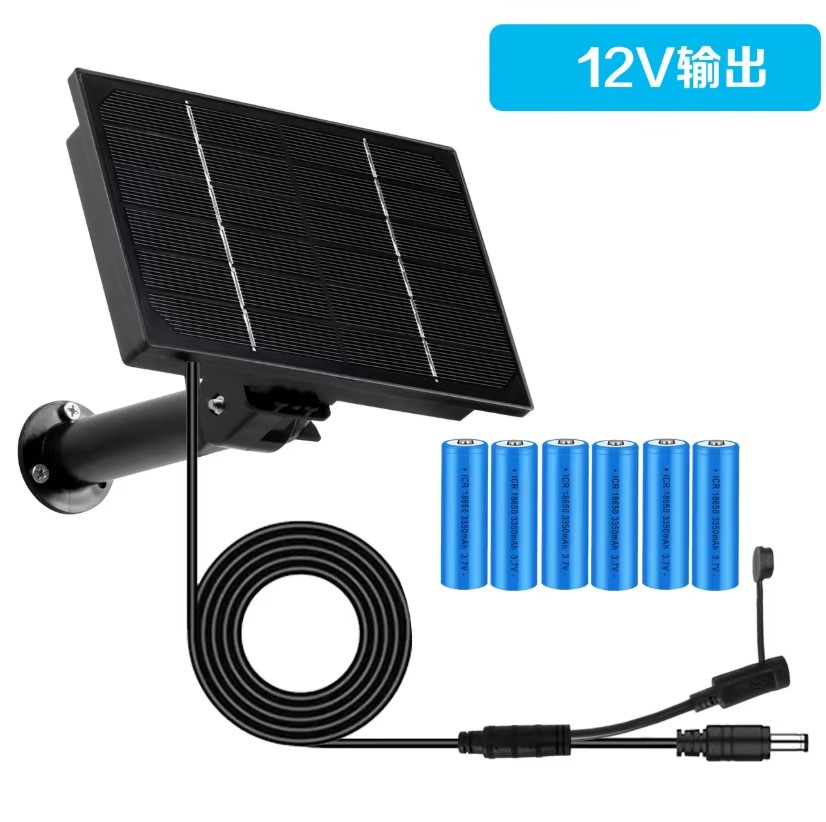
After the hardware is installed, continue to the Device Setup tab to connect Wi-Fi, link the unit, test readings, configure reporting, and finish setup.
These are the on-site setup steps after the hardware has been planned or mounted enough for testing.
Normal phone warning: Your phone may say the Pebble setup Wi-Fi has no internet. That is normal. Stay connected until the setup step is complete.
Start here after connecting to the temporary Pebble setup Wi-Fi.
Enter the Link Code from the portal to bind the physical unit.
Set Wi-Fi, mobile/APN where applicable, and update timing.
Choose sensor type, test readings, and save sensor settings.
Do not hold the button. This opens the temporary setup Wi-Fi.
Use the setup password shown above.
If the page does not open automatically, type the address into the browser.
Use the setup access code. setup1234
Pebble can keep its setup Wi-Fi open for the installer while also connecting to the site Wi-Fi in the background. Finish Setup closes the temporary setup Wi-Fi.
Use Link Device when linking one physical Pebble slot to one Monitoring Device. Enter the Link Code from the portal.
Use Link All Slots on Pebble Plus when one physical unit is being linked to up to three Monitoring Devices. Each slot uses its own Link Code from the portal.
Important: If Link All Slots says internet is required, return to Connection Setup and connect Pebble to the site Wi-Fi first.
Use RS485 service tools only when an RS485 device needs address recovery, bus-speed correction, zero-offset correction, diagnostics, or switch-box service.
Before leaving the job site, confirm the website has updated with the expected value and timestamp.
Finish Setup closes the temporary Pebble setup Wi-Fi and returns the device to normal runtime mode. Use it only after Wi-Fi, linking, sensor setup, and final checks are complete.
Finish Setup does not generate Link Codes, claim slots, erase Wi-Fi credentials, release hardware, or clear the cloud link.
Use the screen message and LED pattern together to decide the next action.
Normal ready state: READY on line 1 and Standby on line 2. During setup, you may see SETUP / 192.168.4.1 or SETUP / WiFi cfg depending on the step.
| Screen | Line 2 | LED Pattern | Meaning | Installer action |
|---|---|---|---|---|
| SETUP | 192.168.4.1 | Slow blink | Device is in setup AP mode. | Connect to setup Wi-Fi and open setup page. |
| SETUP | WiFi cfg | Slow blink | Device is in Wi-Fi configuration mode. | Finish Wi-Fi setup and save site network details. |
| WIFI | Connecting | Medium blink | Connecting to Wi-Fi. | Wait. If it does not connect, check Wi-Fi details and signal strength. |
| WIFI ERR | Check WiFi | Slow blink | Wi-Fi connection failed. | Re-enter Wi-Fi details and try again. |
| UNBOUND | Claim dev | Slow blink | Device is not linked. | Open Link Device and enter the portal Link Code. |
| CLAIM | Claiming | Medium blink | Link request in progress. | Wait for completion. |
| CLAIMOK | Bound | Solid ON | Device link completed successfully. | Continue setup or link another Plus slot if needed. |
| CODEERR | Regen web | Double blink | Link Code expired or invalid. | Generate a new Link Code in the portal. |
| CLAIMER | Try again | Double blink | Link failed. | Retry and confirm Link Code and selected slot. |
| CLOUD | Retry | Double blink + pause | Cloud service could not be reached. | Check internet access, DNS, and firewall / HTTPS access. |
| API ERR | Retry | Triple blink + pause | Server returned a non-success response. | Retry first, then review backend logs if needed. |
| BADRESP | Retry | Triple blink + pause | Unexpected server response. | Retry, then verify firmware and backend response format. |
| RESOLVE | Retry | Double blink + pause | Resolve step failed after network connection. | Retry after confirming Wi-Fi and cloud connectivity. |
| SENSERR | Check sens | Fast blink | Sensor problem detected. | Check wiring, sensor type, address settings, and power. |
| TIMEOUT | Retry | Fast blink | Sensor did not respond in time. | Inspect cabling and communication wiring. |
| READY | Standby | Solid ON | Normal ready state. | No action needed. |
Replacement note: Start Replacement is only for replacing the physical board while keeping the same logical Monitoring Device and tank history. Do not confuse it with moving or re-linking hardware.